

You can manage your OneDrive for work or school to see how much space you’re using and free up space if you’re getting close to your storage limit.
Note
- If you don't have permissions to update storage, contact your site administrator. See Understanding permission levels for more info on permissions.
- To manage your personal OneDrive storage, read How does Microsoft storage work?
Manage your storage in the OneDrive sync app
- Click the blue OneDrive icon
 in the Windows notification area, and then select
 > Settings.
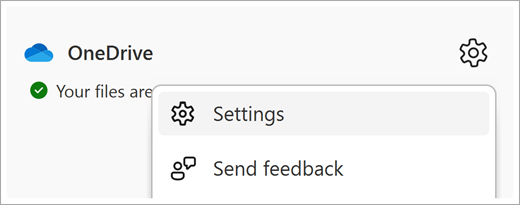
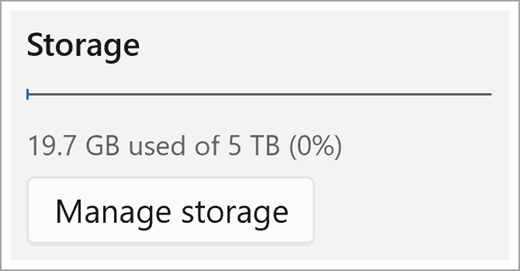
- This shows an overview of the OneDrive storage available. Select Manage storage.
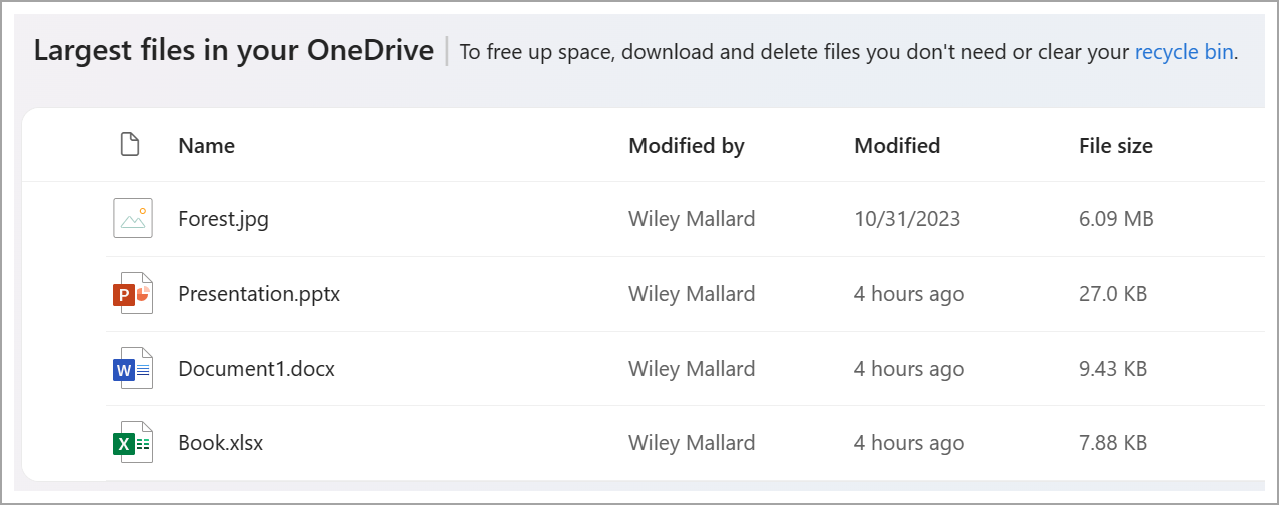
- This opens a largest files page that shows a list of all files in your OneDrive, sorted by size.
Note
After deleting items, you must permanently delete these items in the Recycle Bin to free up space for other items. See Delete files or folders in OneDrive for more info.
Manage storage from the OneDrive website
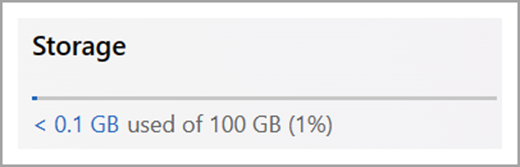
On the OneDrive website when signed in with your work or school account, view the storage used and what's available on the left side navigation. Click on the usage value to redirect to the largest files in OneDrive page.
See also
How does Microsoft storage work for a personal account?