Note
This content applies to the desktop versions of Word for Windows and Mac (including Word with a Microsoft 365 subscription).
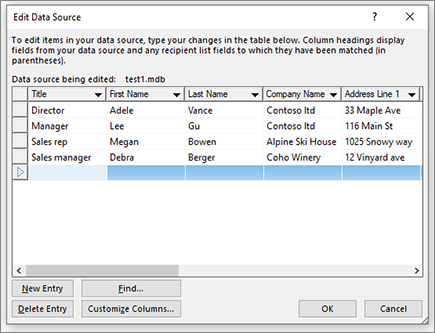
To open the Edit Data Source dialog: On the Mailings tab, select Edit Recipient List. In the Mail Merge Recipients dialog, select the data source you want to edit, and then select Edit.
This dialog lets you edit your mailing list data source.
- Data source being edited This identifies the datasource you're currently editing. The table shows your data. Scroll to see more fields.
- New Entry Use to add records to your mailing list data source.
- Find Search through a data source for a specific record to edit.
- Delete Entry Remove a selected entry. Enabled if you are creating or own the data source.
- Customize Columns This lets you add, delete, or rename columns. You can also move them up or down to change the order. Enabled if you are creating or own the data source.
- OK Saves your changes and exits the dialog.
- Cancel This forgets your changes, and exits the dialog.