

When you add a modern page to a site, you can add and customize web parts, which are the building blocks of your page.
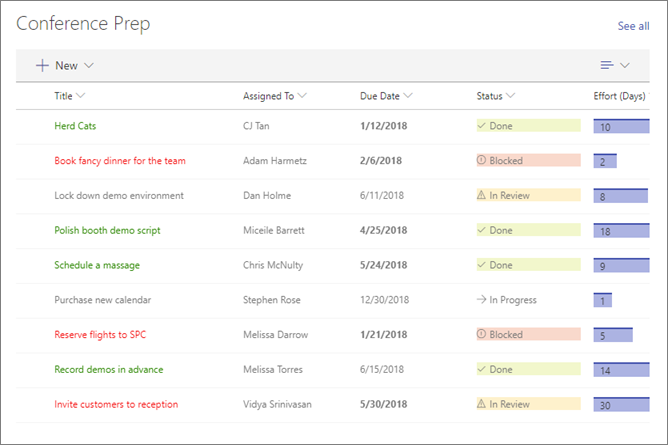
Use the List web part to display a list from your site on a page. You can customize the list's title, view, and size.
You can display custom lists, announcement lists, contact lists, and issue tracking lists.
You can view, filter, sort, and group the list. To open the list page, select See all. The web part can also display formatted columns, nested groups, and attention view.
Note
Some functionality is introduced gradually to organizations that opted in to the Targeted Release program. This gradual rollout means that you might not yet see this feature, or it might look different from what is described in this article.
Add a list to a page
Ensure the list is available on the same site as the page. If you don't have a list, create one.
Create the view to display a custom view of the list.
Go to the page where you want to add the list.
If the page isn't already in edit mode, select Edit in the upper-right corner of the page.
In the Toolbox (
 ), select See all web parts, and then select or drag List onto the page.
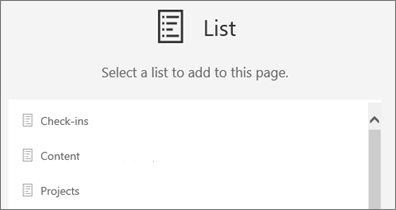
Select the list that you want to display.
Select Edit properties (
 ) on the web part toolbar. In the property pane, change the title, list, view, or size as needed.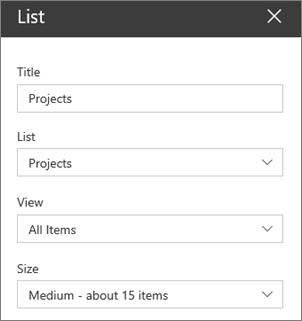
In SharePoint in Microsoft 365, turn on Hide list controls to hide all list controls, including + New.
When you're ready, select Publish or Republish to make your changes visible to people who can view the page.
Add an item
Note
To see + New and add items, your permission level must include the Add Items permission. The Contribute, Edit, Design, and Full Control permission levels include this permission. Users with Read permission can view items but can't add them.
When Hide list controls is turned on, + New is hidden regardless of your permissions. You can't add items from the List web part, but you can add items directly to the underlying list if you have the Add Items permission.
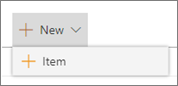
At the top of the list, select + New, and then enter the item details.
Sort, filter, or group the list
In SharePoint in Microsoft 365, you can sort, filter, or group items in the web part.
Select the arrow next to the name of the column that you want to sort, filter, or group.
Select an action.
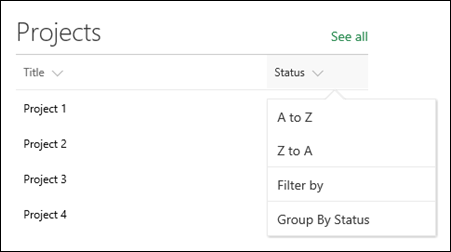
These changes affect only the current display and don't modify the underlying list data.