When you want to get data from a cell in another workbook, consider a workbook link. A workbook link serves as a pointer that lets you refer to cell content, whether just to see it in a new location or to use it in a formula. Workbook links are quicker and easier to set up than traditional data connections. However, they work only between Excel workbooks and both workbooks must be stored in an online location that you can access through your Microsoft 365 account. Other data sources aren't supported.
Important
- Workbook links can be unsafe. When you open a workbook that contains workbook links, select Trust Workbook Links in the message bar to allow the links to refresh. If you don't trust the workbook, Excel continues to display the most recently saved values and prevents the links from refreshing.
Create a workbook link
- Open both workbooks in your web browser.
- In the workbook that has data you want to use (the data workbook, also called the source workbook), right-click the cell you want to link to, and then select Copy.
- In the workbook where you want the link (the formula workbook, also called the destination workbook), right-click the cell where you want the link, and then select Paste Special > Link to source. You can also click the cell where you want the link, then select Home > Clipboard > Paste > Link to source.
- Select Trust Workbook Links.
Manage links in a workbook
Use the Workbook Links pane to refresh links, turn automatic refresh on or off, open data workbooks, and break links. When you first open a workbook that contains links, the Message Bar displays a Manage Workbook Links command you can select to open the Workbook Links pane. You can also open it at any time by using the ribbon.
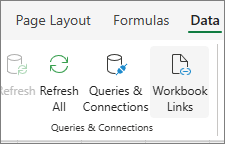
Select Data > Queries & Connections > Workbook Links to open the Workbook Links pane.
In the Workbook Links pane, you can:
Workbook Links options Images Set trust options: - Select Settings on the Workbook Links pane.
- Turn on Always trust workbook links to automatically trust workbook links.
You must trust the workbook before linked data can refresh.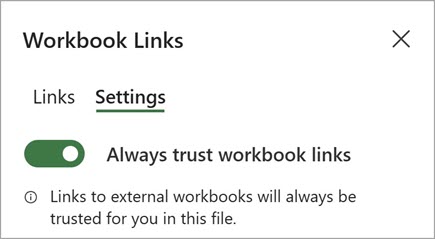
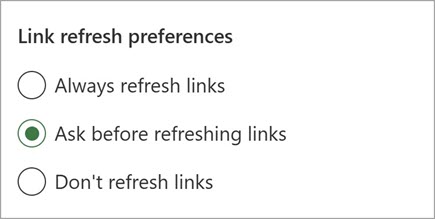
Set refresh preferences: - Always refresh links: Automatically refreshes all links when the workbook opens.
- Ask before refreshing links: Asks the user to refresh or not when the workbook opens.
- Don’t refresh links: Doesn't refresh when the workbook opens and doesn't prompt the user. You must use the Refresh button on the Workbook Links pane to manually refresh.
Refresh all links: - Select Refresh All at the top under the Links tab.
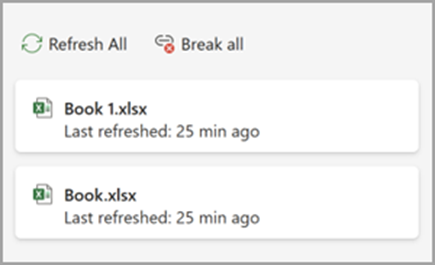
Refresh links from a specific workbook: - Select the data workbook whose links you want to refresh, and then select Refresh.
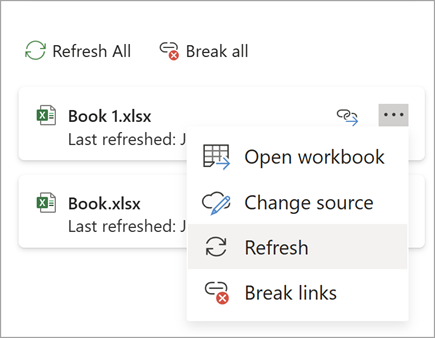
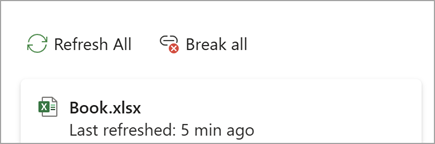
Break all links: - Select Break all at the top in the Links pane.
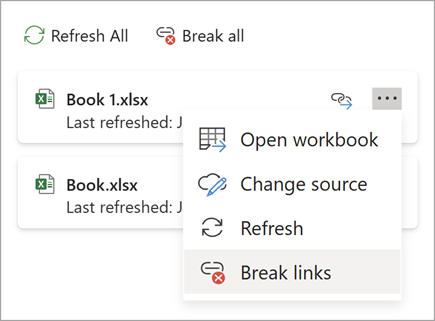
Break links from one source: - Select More Options next to the data workbook with links you want to break, then select Break links.
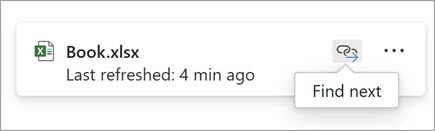
Find linked cells: - Select Find next by the data workbook with links you want to find.